How to Backup & Restore FM WhatsApp APK Chats?
Backing up your chats is something we often ignore until it’s too late. Imagine losing all your FM WhatsApp APK chats, important files, and memories just because of a sudden phone reset or app crash. If you’ve ever switched devices or reinstalled the app, you already know the pain of starting from scratch. That’s why having a proper backup & restore guide for FM WhatsApp can save you from unexpected data loss.
We understand that most users aren’t tech experts and just want a simple, step-by-step method to secure their chats. Don’t worry—you don’t need to be a pro. Whether you want to move your chats to a new phone, restore after an update, or just keep your conversations safe, this guide is designed to make the process easy. Our goal is to give you a trustworthy, tested method that actually works, without confusing jargon.
What makes this guide different is that we’ll not only show you how to backup FM WhatsApp chats but also explain multiple restore options in case one doesn’t work. Plus, we’ll share common fixes and expert tips to avoid errors many users face. By the end, you’ll know exactly how to protect your messages, ensuring your FM WhatsApp data stays safe and accessible anytime you need it.
People Also Like:
- Why FM WhatsApp is Not Available on Play Store and App Store
- How to Make Custom Stickers in FM WhatsApp?
- FM WhatsApp vs Official WhatsApp
Why You Should Backup FM WhatsApp Chats
Protecting Important Conversations
Your FM WhatsApp chats often hold more than just casual messages—they may include work discussions, family moments, or even critical information you can’t afford to lose. Think about those late-night chats with friends, shared documents, or photos that bring back memories. By keeping a proper FM WhatsApp backup, you make sure your conversations stay safe even if your phone crashes or the app misbehaves.
Switching to a New Device
Got a new phone? The excitement can quickly turn into frustration if you can’t carry over your old messages. Without a backup, moving to a new device often means starting with a blank chat history. A backup of FM WhatsApp APK chats makes the transition smooth—your groups, contacts, and chats follow you instantly. It’s like packing your essentials before shifting homes; you don’t want to leave anything behind.
Avoiding Data Loss During Updates or Reinstallation
Updates and reinstallations are common, but they’re also risky when it comes to third-party apps like FM WhatsApp APK. A failed update or fresh install can wipe out your data in seconds. Having a secure chat backup ensures that you don’t lose years of messages just because of one technical glitch. Restoring from a backup is far quicker than trying to recover lost data later—which, let’s be honest, is almost impossible.
Methods to Backup FM WhatsApp APK Chats
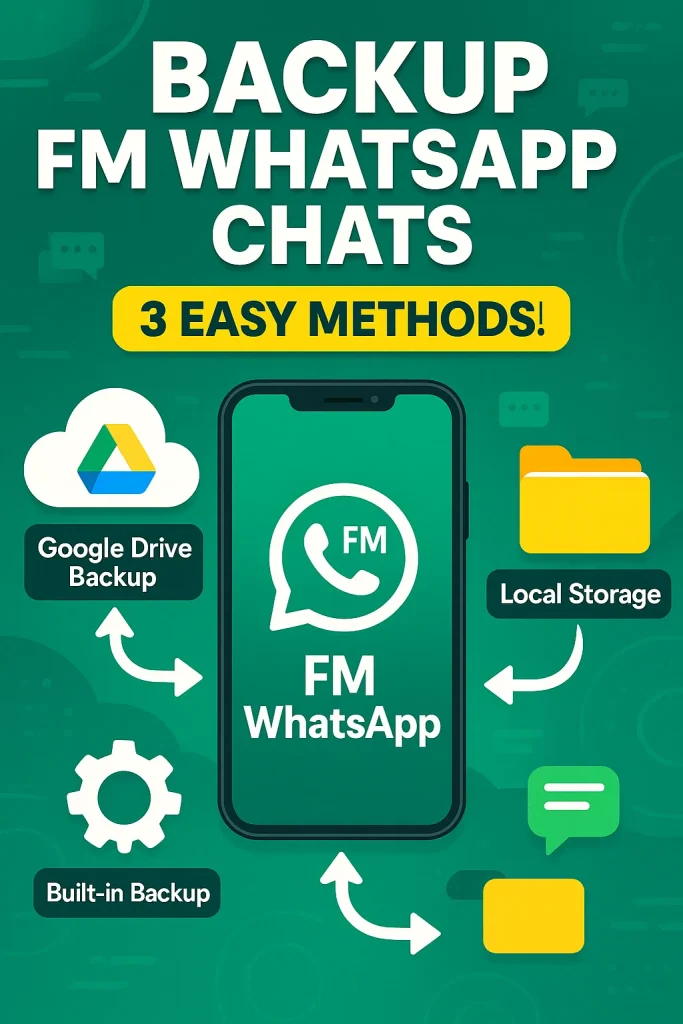
When it comes to securing your FM WhatsApp APK chats, there isn’t just one way to do it. Depending on your device and preferences, you can use built-in options, local storage, or even cloud services. Let’s break down the most reliable methods so you can pick what works best for you.
Using Built-in Backup Options
FM WhatsApp comes with a built-in backup feature that lets you save your chat history in just a few taps.
- Open FM WhatsApp Settings.
- Go to Chats → Chat Backup.
- Tap on Backup Now to create a copy of your messages and media.
This method is quick and beginner-friendly. It ensures your FM WhatsApp messages are backed up inside the app itself, ready to restore whenever you reinstall.
Backing Up to Local Storage
If you prefer manual control, local storage backup is a solid choice. This means your chats are saved directly on your phone’s internal memory or SD card.
- Open FM WhatsApp and perform a chat backup.
- Navigate to your phone’s File Manager → FM WhatsApp → Databases.
- Copy the backup file to a safe location, like your PC or an external drive.
This way, even if your phone breaks, you’ll still have your FM WhatsApp backup file stored safely elsewhere. Think of it like keeping a spare key to your house—you hope you won’t need it, but it’s reassuring to have.
Backing Up to Google Drive (if available)
Some versions of FM WhatsApp APK allow integration with Google Drive backup, making it easier to store data in the cloud.
- Go to Settings → Chats → Chat Backup.
- Select Google Drive as your backup destination.
- Choose your Google account and tap Back Up.
With cloud storage, your chats remain safe even if your device is lost or damaged. Plus, restoring them on a new phone becomes effortless—you just sign in and pull everything back.
How to Restore FM WhatsApp Chats
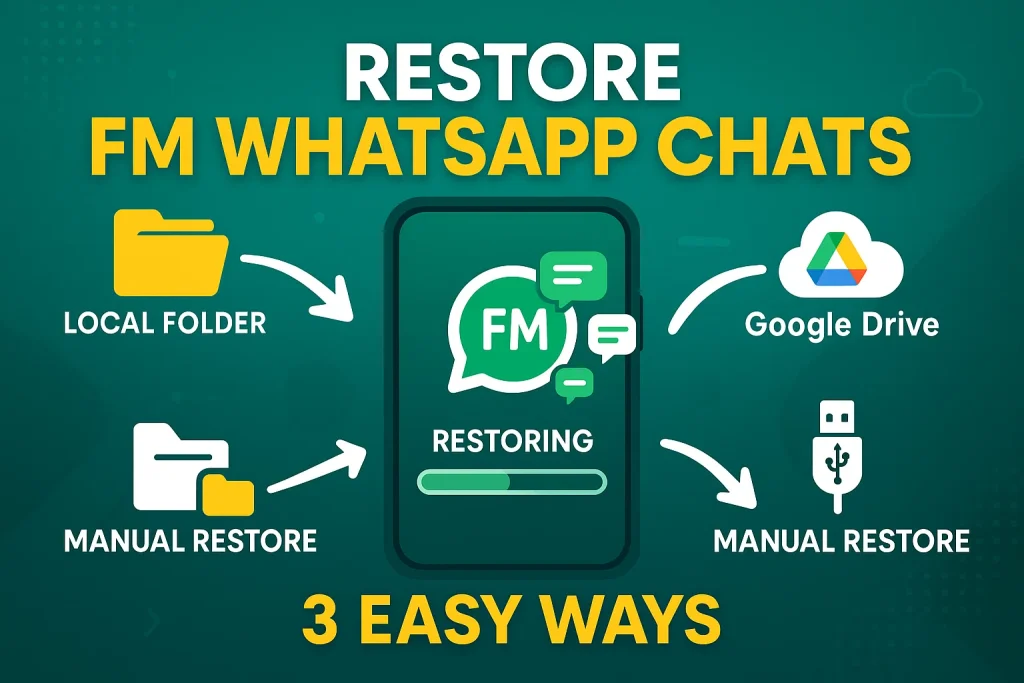
After creating a backup, the next big step is restoring your FM WhatsApp chats whenever you reinstall the app or switch to a new phone. The process is straightforward, but it depends on how you backed up your data. Let’s go through the main restore methods one by one.
Restoring from Local Backup
If you saved your FM WhatsApp backup file on your phone’s internal storage or SD card, here’s how to restore it:
- Uninstall and reinstall FM WhatsApp APK on your device.
- Open the app and verify your phone number.
- The app will automatically detect the local backup from your storage.
- Tap on Restore when prompted, and your messages will be back in minutes.
Restoring from Google Drive
For those who backed up to Google Drive, restoring is just as simple:
- Install FM WhatsApp APK and verify your phone number.
- When asked, choose Restore from Google Drive.
- Select the Google account linked to your backup.
- Wait for the process to finish, and all your FM WhatsApp chats and media will sync back.
Manual Restore Method
Sometimes, the app doesn’t automatically detect your backup file. In that case, a manual restore comes to the rescue:
- Locate your FM WhatsApp backup file (usually in File Manager → FM WhatsApp → Databases).
- Copy the latest backup file (e.g.,
msgstore.db.crypt14). - Paste it into the Databases folder of the freshly installed FM WhatsApp.
- Launch the app, verify your number, and tap Restore when prompted.
Common Issues and Fixes During Backup & Restore
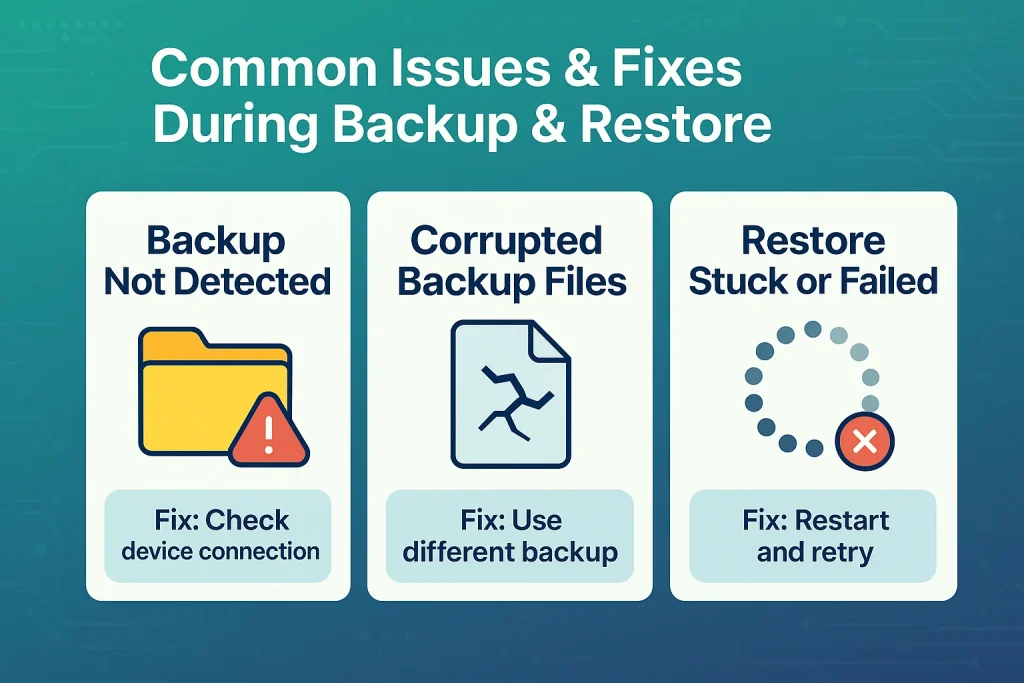
Even if you’ve created a proper FM WhatsApp backup, sometimes things don’t go as planned during restore. Here are the most common issues and how to fix them quickly.
Backup Not Detected
- Make sure the backup file is stored in the correct folder (FM WhatsApp → Databases).
- If you recently changed devices, copy the file manually into the same folder.
- Double-check that you’re using the same phone number and account—otherwise, the app won’t recognize the backup.
Corrupted Backup Files
- A corrupted FM WhatsApp backup file usually happens if the process was interrupted.
- Try restoring an older backup (look for files like
msgstore-YYYY-MM-DD.crypt14). - Avoid using third-party cleaners or mods that might delete or damage your database files.
Restore Stuck or Failed
- Check your internet connection if restoring from Google Drive.
- For local backups, clear app cache and try again.
- If the restore keeps failing, uninstall and reinstall FM WhatsApp APK, then place the backup file back in the Databases folder before starting the app.
Tips for Safe Backup & Restore
Keeping your FM WhatsApp chats safe doesn’t stop at just creating a backup. Following a few smart habits ensures your data is always protected and ready to restore when you need it.
Keep Regular Backups
- Set a routine to create a fresh FM WhatsApp backup weekly or monthly.
- Regular backups mean you won’t lose recent conversations if something goes wrong.
Store Backups in Multiple Locations
- Don’t rely on just one spot—keep copies in local storage, on your PC, or in Google Drive (if supported).
- Multiple storage options give you peace of mind in case your phone is lost or damaged.
Verify Before Uninstalling or Reinstalling
- Always check that your latest backup file is saved correctly.
- Open File Manager → FM WhatsApp → Databases to confirm the file exists before deleting or reinstalling the app.
Conclusion
Backing up and restoring your FM WhatsApp chats doesn’t have to be complicated. We’ve covered everything—from creating backups using built-in tools, local storage, and even Google Drive, to restoring your data safely without losing important conversations. With the right steps, your messages, files, and media stay secure no matter what happens to your phone or app.
That said, every user’s experience can be a little different. Some may prefer the simplicity of cloud backups, while others feel more comfortable storing backup files manually on their devices or PCs. Both methods work—what matters is choosing the option that gives you confidence and peace of mind.
If you still have doubts about FM WhatsApp backup & restore, feel free to drop your questions in the comments. Don’t hesitate to share this guide with friends who use FM WhatsApp—it might save them from losing precious chats. And for more helpful tutorials and tips, check out our dedicated FM Mods blog category where we regularly share tested guides.