How to Update FMWhatsApp Without Losing Chats?
If you’re using FMWhatsApp to enjoy extra features beyond the official WhatsApp, you’ve probably wondered how to update FMWhatsApp without losing chats. Nobody wants to risk losing important conversations, media, or files during an update. The good news is, updating safely is possible if you follow the right steps.
We know how frustrating it feels when an update wipes out your entire chat history. Many users avoid updating because of this fear, but skipping updates can expose your phone to security risks and app glitches. As someone who has tested and researched this thoroughly, I’ll walk you through a simple method that actually works, so you can update confidently.
Unlike random guides floating online, this article is built to give you a step-by-step, beginner-friendly process that protects your data. You’ll learn not just how to update but also how to back up and restore your chats the right way. With this guide, you’ll keep enjoying the latest FMWhatsApp features without ever worrying about losing your messages.
What is FMWhatsApp?
FMWhatsApp is a popular WhatsApp mod app that offers extra features you won’t find in the official version. Think of it as a customized upgrade — with options like advanced privacy controls, unique themes, and extended file-sharing limits. While it isn’t developed by WhatsApp Inc., many users prefer it because it lets them personalize their chat experience in ways the standard app doesn’t. If you’ve ever wanted to hide your online status, make custom stickers, send larger media files, or enjoy more customization, that’s exactly where FMWhatsApp comes in.
Also Read Why FMWhatsApp is not Available on trusted Platforms like Google Play Store and Apple App Store.
Why You Should Keep FMWhatsApp Updated
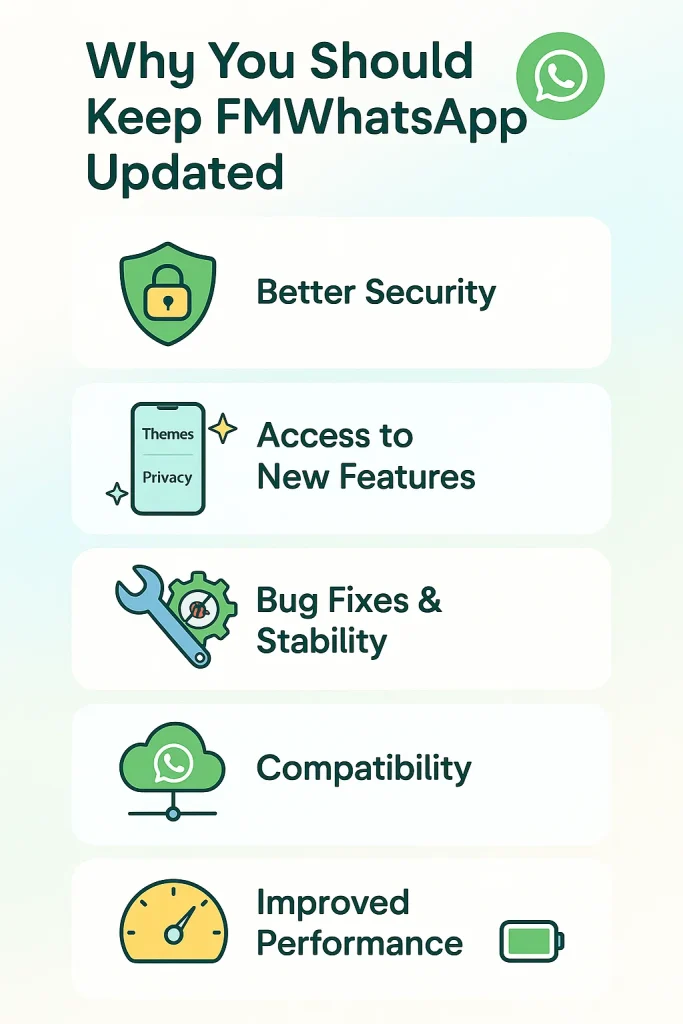
- Better Security: Updates usually patch bugs and close loopholes that could expose your personal data. Staying updated means you’re less vulnerable to hacks or malware.
- Access to New Features: Every new FMWhatsApp update comes with exciting options like fresh themes, improved privacy settings, or upgraded media-sharing capabilities.
- Bug Fixes and Stability: If you’ve ever faced app crashes, delayed messages, or glitches, updates often fix these issues, giving you a smoother chatting experience.
- Compatibility with WhatsApp Servers: Outdated versions may stop syncing properly with WhatsApp services, which could block you from sending or receiving messages.
- Improved Performance: Regular updates help the app run faster, use less battery, and reduce storage problems.
Things to Do Before Updating FMWhatsApp
- Back Up Your Chats: The most important step is creating a full FMWhatsApp chat backup. This ensures you don’t lose your messages, photos, or videos during the update.
- Check Your Phone Storage: Updates need free space. Make sure your device has enough storage to download and install the latest FMWhatsApp APK smoothly.
- Enable Unknown Sources: Since FMWhatsApp isn’t on the official app stores, you’ll need to allow installation from unknown sources in your phone settings.
- Note Down Custom Settings: If you use special themes or privacy options, jot them down. Sometimes updates reset preferences, and it’s easier to restore them later.
- Download the Update from a Trusted Source: Always get the new FMWhatsApp update APK from a reliable website to avoid fake or unsafe files.
Step-by-Step Guide to Update FMWhatsApp Without Losing Chats
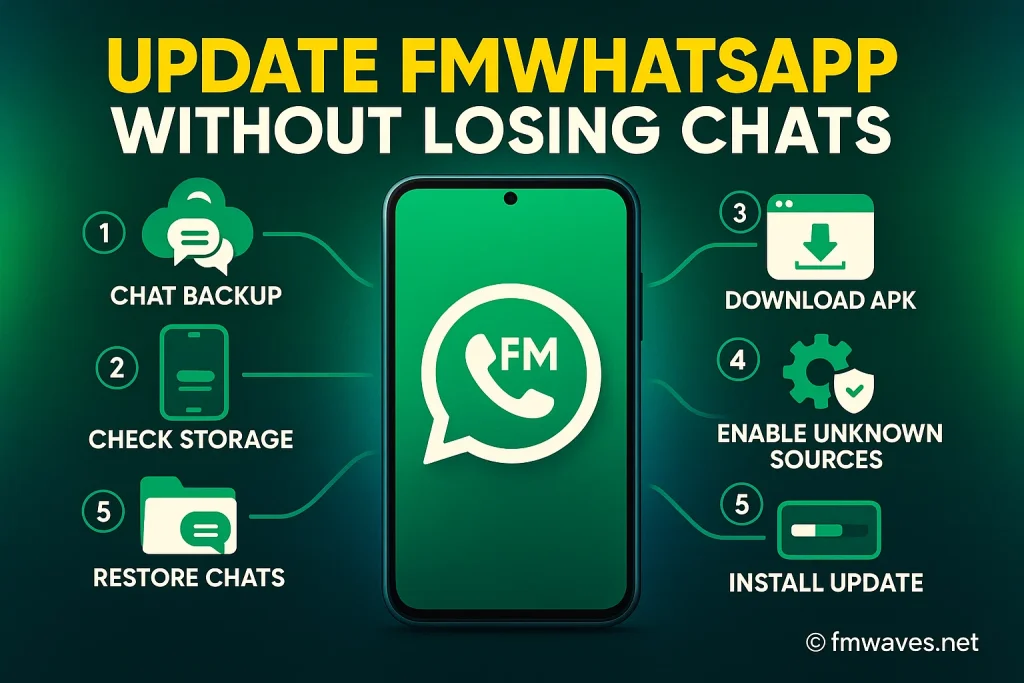
- First, open FMWhatsApp and go to Settings > Chats > Backup to create a secure chat backup. This will save all your messages and media so you don’t lose them during the update.
- Once the backup is complete, check your phone’s storage space. Make sure there’s enough room to download and install the latest FMWhatsApp APK.
- Now, open your browser and visit a trusted website to download the most recent version of FMWhatsApp update APK. Avoid random sites, as they may contain unsafe files.
- Before installing, head to your phone’s Settings > Security and enable Unknown Sources. This option allows you to install apps that aren’t from the official Play Store.
- Next, install the new version of FMWhatsApp by opening the downloaded APK file. Don’t uninstall the old app, just install the update on top of it — this way, your chats remain safe.
- After installation, open the updated app, verify your phone number, and then choose the option to Restore Chat Backup. Wait a few minutes while your chats and media are recovered.
- Finally, check if your custom themes, privacy settings, and preferences are still in place. If not, you can easily reapply them from your saved notes.
How to Restore Chats After Updating FMWhatsApp
- Open the newly updated FMWhatsApp app and verify your phone number using the same number you used before updating.
- Once verified, the app will automatically detect your saved FMWhatsApp chat backup. Select the Restore option to begin the process.
- Wait while the app restores your messages, media files, and attachments. Depending on the size of your backup, this can take a few minutes.
- After restoration is complete, you’ll see all your old chats, groups, and contacts exactly as they were before the update.
- If some themes or custom privacy settings aren’t restored automatically, you can quickly reapply them from your backup notes or settings menu.
- Double-check your chat history to make sure nothing is missing. If you had backed up properly before updating, everything should be intact.
Common Problems During Update and Their Solutions
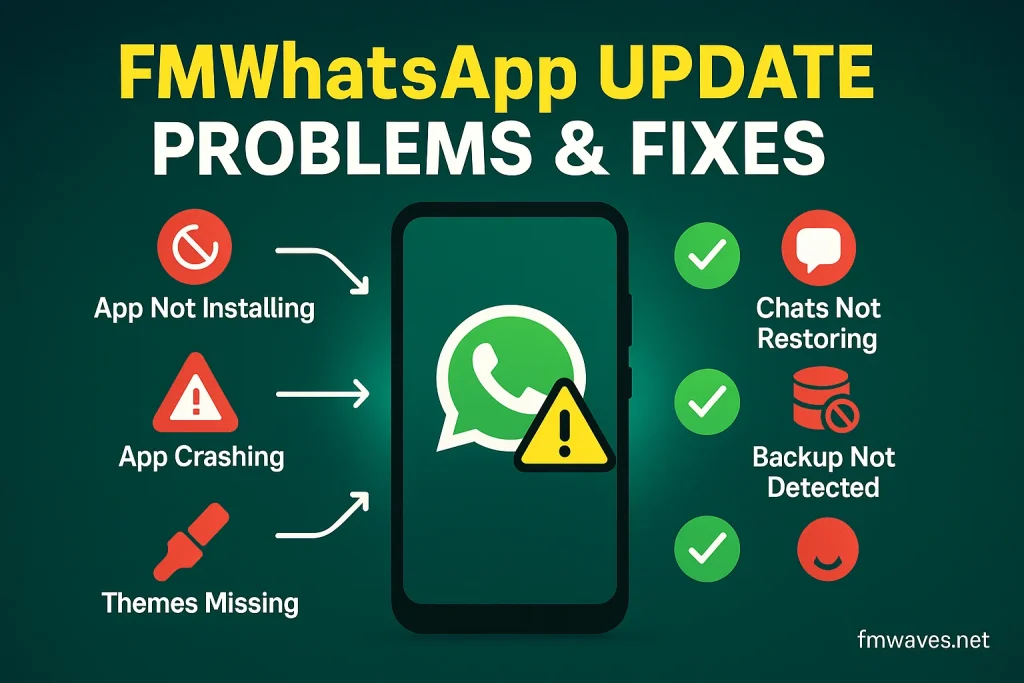
App Not Installing
- Make sure you’ve downloaded the correct FMWhatsApp APK version that matches your device.
- Enable Unknown Sources in your phone’s security settings.
- Clear old APK files and retry with a fresh download from a trusted site.
Chats Not Restoring
- Confirm you created a proper FMWhatsApp backup before updating.
- Use the same phone number during verification, otherwise backups won’t appear.
- If the restore option doesn’t show, check your device storage for the backup file and try again.
App Crashing After Update
- Clear cache and data of FMWhatsApp in your phone settings.
- Restart your device and reopen the app.
- If crashes continue, reinstall the latest FMWhatsApp update APK without uninstalling the current version.
Backup File Not Detected
- Ensure the backup file is stored in the correct folder (usually in internal storage > FMWhatsApp).
- Move the backup file manually if it’s in the wrong location.
- Rename the backup folder properly so the app can recognize it.
Themes or Settings Missing
- Some updates reset custom themes and privacy options.
- Reapply your saved settings manually from the themes folder or privacy menu.
- Always note down your custom preferences before updating to make recovery easier.
Many FMWhatsApp APK users are currently facing FMWhatsApp Login issues due to several reasons. If you are facing the same issue then you can fix it by readding our blog: Fix FMWhatsApp APK Login Issue Step by Step Guide.
Conclusion
Updating FMWhatsApp without losing chats may seem tricky, but with the right steps, it’s completely manageable. From creating a proper backup to installing the latest FMWhatsApp APK, we’ve walked through every detail you need. You’ve also learned how to restore chats, solve common issues, and keep your app running smoothly.
At the end of the day, keeping your FMWhatsApp updated isn’t just about new themes or features—it’s also about security, stability, and performance. While it does require a little extra care compared to the official WhatsApp, the extra control and customization are worth it for many users. Still, it’s always best to download updates from trusted sources and back up your data first.
I’d love to hear your experience with updating FMWhatsApp—did you face any issues or find a handy trick? Drop your thoughts in the comments, share this guide with friends who use FMWhatsApp, and explore more helpful articles in our Blog category. If you’re stuck anywhere, don’t hesitate to reach out to our support team—we’re here to help.